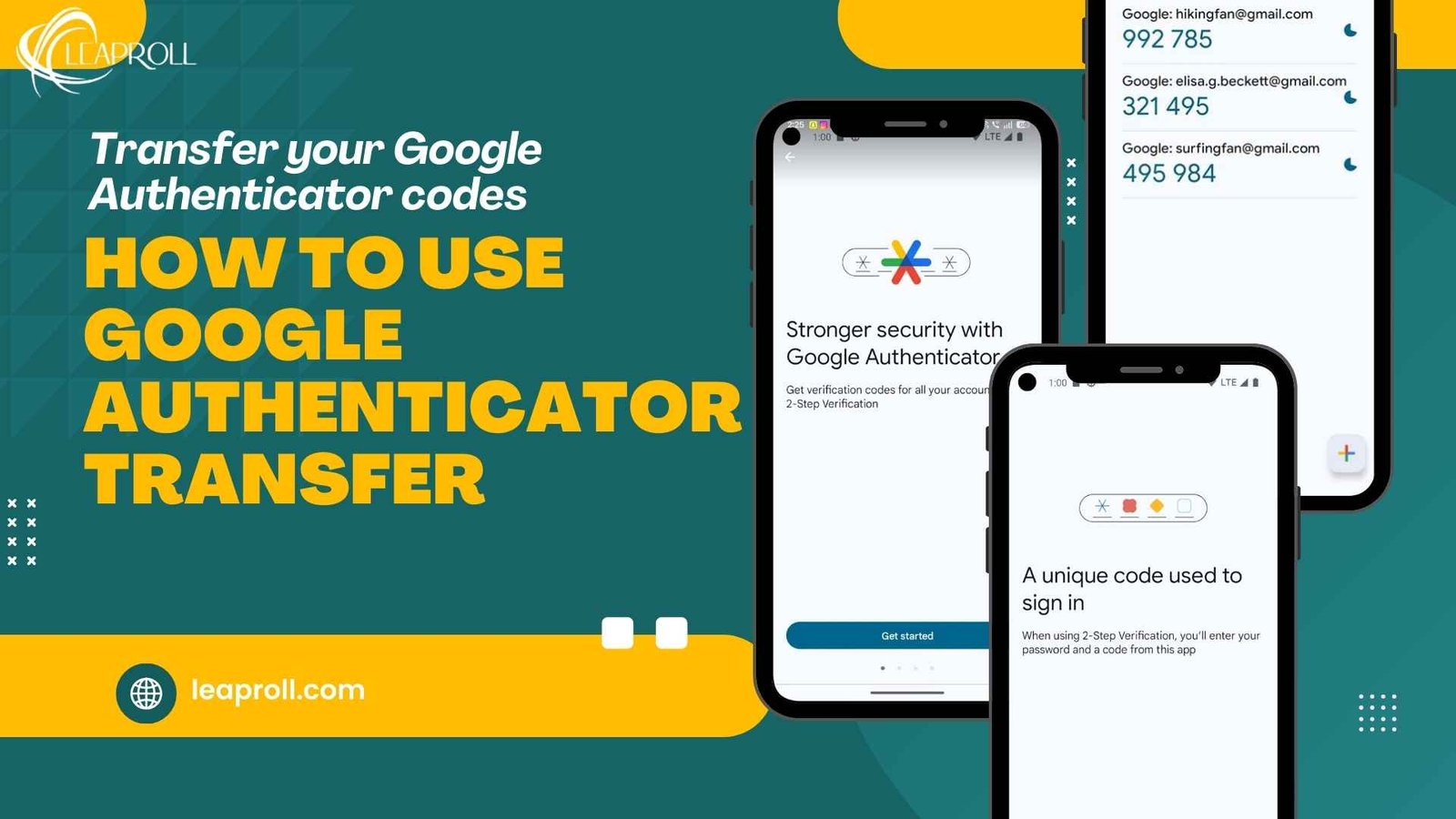
Security online has never been as significant as it is now. Many websites implement two-factor authentication (2FA) to prevent hacking and unauthorized access of accounts. Google Authenticator is one of the most reliable applications in the production of 2FA codes. But when users switch their phone, format it, or purchase a new one, they are usually in trouble transferring their authentication codes. This is why it is necessary to learn how to use Google Authenticator transfer.
This article explains how to Use Google Authenticator Transfer, how it works in a step by step manner covering all the situations such as Android to Android, iPhone to iPhone, or even Android to iPhone transfer.
What Is Google Authenticator Transfer?
Google Authenticator transfer is a safe system of transferring two-factor authentication (2FA) data between two smartphones when a user switches or receives an upgrade on his or her phone. Google Authenticator is software that generates time based one-time passwords (TOTP) which are use as an additional protection of online accounts including email, social media, banking, cloud services and cryptocurrency exchanges. These codes are not stored on a cloud but stored locally on the device, which implies that they are not automatically visible on a new phone.
This issue is overcome by the transfer feature which enables users to transfer their authentication accounts between phones and import them into new phone. In the process of transfer, the Google Authenticator generates an encrypted QR code with the chosen account details. The new device scans this QR code to restore the identical authentication entries so that regenerating codes do not stop. The approach will allow users to prevent the possibility of account lockout, it will not be necessary to disable and re-enable two-factor authentication on every service and ensure that security remains intact during the transition to the phone.
Why Google Authenticator Transfer important ?
- It is necessary to understand the importance of such a process before knowing how to use Google Authenticator transfer.
- It avoids lockout of accounts because you will always have access to the authentication codes when changing the gadget.
- It is time saving when upgrading a phone since you do not have to turn off and re-enable two-factor authentication on each account.
- It also leaves the two-factor authentication on during the device change to ensure the same level of security.
- It does not involve risky and time-consuming account recovery procedures potentially involving identity validation or customer service.
- It keeps your accounts safe in a continuous manner without any form of interruption.
- It may be challenging and even impossible to log in to valuable accounts like email providers, banking apps, or cryptocurrency apps without transferring authenticator information.
Things to verify before beginning Google Authenticator Transfer
The following conditions must be satisfied before the step-wise process is implemented:
- Previously used phone should also be present and unlocked.
- Google Authenticator should be installed on the two devices.
- New phone must be completely configured.
- It is advisable to have a stable internet connection.
- The phone screen lock or a biometric check should be activated.
- When all these checks are done you may go ahead with the transfer.
How to Use Google Authenticator Transfer
Step 1: Open Google Authenticator on Old Phone.
Turn on the unlock button of your old phone and open the Google Authenticator application where you can view all your accounts opened.
Step 2: Open Transfer Option.
On the menu icon, (three dots or settings icon depending on device), tap.
In the menu, choose the option of transfer accounts.
Step 3: Choose Export Accounts
Tap on “Export accounts”.
This is an option that makes your accounts ready to transfer safely.
Step 4: Verify Your Identity
Identity verification will be required in Google Authenticator.
Whole verification with:
1 Fingerprint
2 Face recognition
3 PIN or pattern lock
This measure will make sure that there is no unauthorized transfer.
Step 5: Choose Accounts to Transfer.
At this point, choose the accounts that you wish to relocate.
You can:
• Select all accounts
• Select specific accounts
After selection, tap Next.
Step 6: Generate QR Code
On your old phone screen there will be a QR code. This QR code has a coded information of your chosen accounts.
Do not close this screen.
Step 7: Google Authenticator on New Phone. Install Google Authenticator on your new phone. Tap Get Started or open up the menu and tap Transfer accounts.
Step 8: Choose Import Accounts
Tap on “Import accounts”.
Permission to allow camera.
Step 9: Scan QR Code
Use your new phone to scan the QR-code on the old phone.
In case there are more than one QR codes, they should be scanned separately.
Step 10: Assure the transfer success.
After scanning, all the accounts chosen would be visible on the phone which was purchased.
Test the coding to determine whether the codes are subcontracting and functioning correctly.
How to move Google Authenticator Android to Android
The process is the same, except that in this case it is simplified according to Android specifications:
1: Open the Google authenticator application on the old Android phone where all the existing accounts can be seen.
2: Press a three-dot menu and choose the Transfer accounts option.
3: Tap on Export accounts and the
transfer process would begin.
4: Screen lock, fingerprint or PIN authenticate your identity on your phone.
5: Choose the accounts to be transferred and tap Next to proceed.
6: The chosen account data will be display on the screen in the form of a QR
code.
7: Open Google Authenticator app on your new android mobile.
8: Tap on the transfer menu and tap on Import accounts.
9: Take a scan on the QR code shown on the old phone with the camera of the new one.
10: Check that all authentication codes are valid and displayed and updated in the new phone.
How to Use Google Authenticator Transfer from iPhone to iPhone
1: Open the Google Authenticator application in your former iPhone, where
you have stored your present-day accounts.
2: Tap the menu option and choose Transfer accounts among the list.
3: Choose the option of Export accounts to initiate the transfer process.
4: Authenticate via Face ID or device passcode.
5: Choose the accounts to transfer to the new iPhone.
6: Create the QR code which includes
your chosen authentication accounts.
7: In your new iPhone, open the Google Authenticator app.
8: Select Import accounts among the transfer options.
9: Use the new device to scan the QR code on the old iPhone.
10: Check that all account codes are showing properly and updating on the iPhone 4.
How to Use Google Authenticator Android to iPhone or iphone to Android
Inter-platform transfers use the same method of QR code.
1: Back up the authentication accounts of your previous device with the transfer functionality in Google Authenticator.
2: Authenticate your identity with the security features of your device: fingerprint, Face ID, passcode.
3: Create a QR code, which is a securely store container with the chosen account data.
4: Download the Google Authenticator app and install it on the new device.
5: Select the Import accounts option
under the transfer menu.
6: Use the camera of the new device to scan the QR code on the old device.
7: Check that the transfer has worked by ensuring that all the authentication codes are visible and updating on the new device.
Post-Google Authenticator Transfer
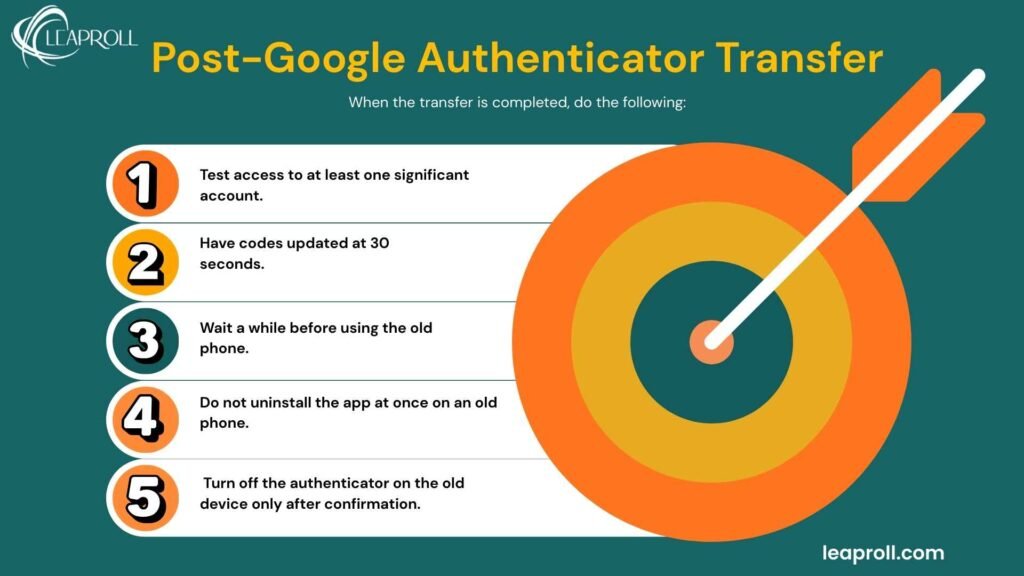
When the transfer is complete, do the following:
1: Test access to at least one significant account.
2: Have codes updated at 30 seconds.
3: Wait a while before using the old phone.
4: Do not uninstall the app at once on an old phone.
5: Turn off the authenticator on the old device only after confirmation.
Common errors in Google Authenticator Transfer
1: Before completing the transfer,
delete the Google Authenticator application on the old phone.
2: Beginning the transfer without being able to access the old device on which the accounts are save.
3: Not scanning all the QR codes when there are some codes create on different accounts.
4: Closing the QR code screen before the new device is fully scan.
5: Snapping a picture of the QR code rather than scanning it in real-time, which may lead to security breaches.
6: Failure to ensure that the authentication codes are functioning correctly on the new device.
7: Immediately resetting or selling the old phone without verifying the transfer of accounts.
What If Old Phone Is Lost or Broken?
The internal transfer option will fail to work in case you are unable to access your previous phone.
In that case:
1: When the authenticator is not available, log in using the backup codes that the site provided to you to access your account.
2: Use other forms of verification like email or SMS to log in to your account.
3: Turn off the current two-factor authentication associated with the old gadget on the account security page.
4: Re-install Google Authenticator on the new phone by turning on two-factor authentication and scanning the new QR code.
This process differs according to the platform, and it can be time-consuming.
Security Advice: Google Authenticator Transfer
Follow these best practices:
- Never share QR codes
- Do not leave screenshots of QR codes.
- Always enable screen lock
- Keep backup codes safe
- The transfer within a personal setting.
- The priority should always be on security.
Conclusion
Learning to use Google Authenticator transfer is vital to anyone that depends on two-factor authentication to protect online accounts. The transfer option enables users to transfer their authentication codes securely between devices without turning off security or exposing themselves to unauthorized access of their accounts. With the help of the step-by-step procedure and the avoidance of the most frequent errors, users can make the process of upgrading or switching phones as easy as possible. Follow-up checks following the transfer and the availability of backup options also aid the continuity of security of valuable accounts.
FAQ’s
No, the inbuilt transfer utility needs connection to the old phone. Otherwise, you have to use backup codes or account recovery features.
No, the data transfers are safe as they employ encrypted QR codes and demand identity checks on a device level.
Yes, the codes can be use until the reset of the old device or the removal of the app, and that is why it is advisable to verify them.
Yes, Google Authenticator does give the option of selecting individual accounts when exporting.
You need to actually log in on at least one significant account and ensure that the codes are updating properly on the new device.
You can also Read About it: