
What is Selenium?
Selenium is a highly used open-source web application testing tool. Selenium allows testers to automate web browsers precisely the way an actual user would, i.e., it can mimic clicks, typing, navigation, etc. It is utilized by developers and testers to make web applications platform and browser-independent.
The most essential component of Selenium is Selenium WebDriver, by which the browser is driven, user action is simulated, and test data is captured. If you are wondering what is selenium webdriver, it is the core framework that enables automation by directly communicating with the browser. Selenium WebDriver can be employed to automate nearly any kind of interaction with a website, including form controls like radio buttons and checkboxes, which are used for most of the user input on a form.
Handling Form Controls in Selenium: An Overview
In testing web applications, radio buttons and checkboxes are usually a basic way in which users will use a site. Automating these ensures that regardless of the level of complexity of a form, users’ choices will be processed correctly. This makes sure that the submission of the form acts in an expected manner when executed in different browsers and environments. By automating this, the testers also save time and will be able to test corner cases, which are inadvertently lost in the process of manual testing. The tests are also guaranteed to be consistent and repeatable, thus ensuring that new changes don’t hamper existing working functionality.
Selenium has built-in support for checkboxes and radio buttons, and the latter can easily be controlled by finding the controls with a different set of locators such as ID, class name, or XPath.
Processing Checkboxes in Selenium
Checkboxes permit users to tick one or a combination of options available in a list. Selenium offers an easy method of simulating a user’s behaviour with checkboxes.
To toggle a checkbox, we essentially want to retrieve whether it is checked or not, and then click on it. This can be done using the isSelected() method which will return a boolean as to whether the box is checked or not. Below is a simple example of how we can deal with checkboxes in Selenium:
| // Locate the checkbox element WebElement checkbox = driver.findElement(By.id(“checkboxId”)); // Check if the checkbox is already selected if (!checkbox.isSelected()) { // Click the checkbox to select it checkbox.click(); } |
Here, the script first attempts to locate the checkbox element and then finds out if the checkbox is checked or not using the isSelected() method. If the checkbox is not checked, it fires a click against the checkbox to check it.
But there’s one extremely useful thing to note about automating checkboxes – Selenium views checkboxes as a binary control – it is checked or isn’t checked. It doesn’t have any type of support for partial selections or anything intermediate.
For more complicated usage scenarios, for example, when one has a group that controls several checkboxes, we can loop over every single one of the checkboxes and verify their state where necessary.
| List<WebElement> checkboxes = driver.findElements(By.name(“checkboxGroup”)); for (WebElement checkbox : checkboxes) { if (!checkbox.isSelected()) { checkbox.click(); } } |
Handling Dynamic Content in Checkboxes
Dynamic web pages tend to modify their structure depending on the actions of the user or according to any time sensitive content. This kind of behavior might render automation of checkbox interactions irrelevant since the element for the checkbox might be absent when the script runs. The workaround would be to utilize JavaScriptExecutor in Selenium, where the checkbox is chosen through JavaScript even if the checkbox is not visible to the user. This can also be used to test edge cases where the checkbox was made invisible or was dynamically disabled.
| JavascriptExecutor js = (JavascriptExecutor) driver; js.executeScript(“arguments[0].click();”, checkbox); |
Common Issues with Checkboxes
Even though working with checkboxes can be easy, there are a few problems that individuals are likely to encounter. One is to make sure the checkbox is in a responsive state prior to clicking on it, particularly when the checkbox is dynamically loaded or loaded via JavaScript. Dynamic elements have timing issues, and Selenium’s default implicit waits might not always be effective in handling them.
One of the key issues here is getting to display the checkbox and ensure it is visible, especially in dynamic web pages. Here, explicit waits become inevitable, and we can define very precise conditions on which the checkbox should be clickable. We can, for instance, wait for the checkbox to exist in the DOM but also be visible on screen and be click-able.
Automating Radio Buttons with Selenium
Radio buttons, as opposed to checkboxes, enable one to choose a selection from a list. A group of radio buttons is implemented in a way that when one radio button is chosen, the others are cleared.
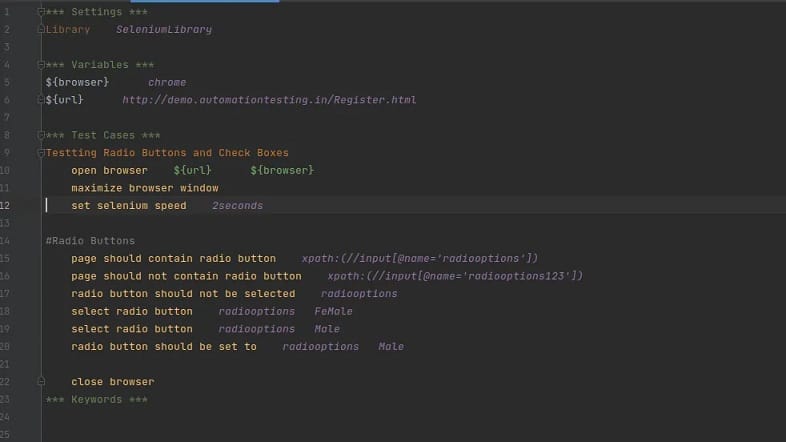
When we are automating radio buttons using Selenium, the procedure is exactly the same as in the case of checkboxes in the way that we have to find the button and make sure that it is not already selected before clicking on it. But the major difference with radio buttons is that radio buttons belong to an exclusive group, meaning that only one radio button can be clicked at a time.
Here is an example of how to handle a radio button:
| // Locate the radio button element WebElement radioButton = driver.findElement(By.id(“radioButtonId”)); // Check if the radio button is already selected if (!radioButton.isSelected()) { // Click the radio button to select it radioButton.click(); } |
Just like checkboxes, radio buttons can be grouped using attributes like name, and Selenium allows us to find and interact with them accordingly.
Handling Radio Buttons in Groups
Radio buttons mostly occur in a group where they can be checked one at a time. Whenever we have the need to perform an action on more than one radio button within the same group, we can use Selenium to iterate over the options and check the one that satisfies our test condition.
For example:
| List<WebElement> radioButtons = driver.findElements(By.name(“radioGroup”)); for (WebElement radioButton : radioButtons) { if (radioButton.getAttribute(“value”).equals(“desiredOption”)) { radioButton.click(); break; } } |
In this example, the script loops through all radio buttons within the group and selects the one with the desired value.
Handling Multiple Radio Button Groups
In certain cases, we might be working with scenarios where there are multiple sets of radio buttons in a single form. This can result in issues when the script is operating using the incorrect set of buttons. To handle such scenarios, we have to use the locator approach to operate using the proper set of radio buttons, particularly when using advanced forms with more than a single section.
Challenges When Automating Radio Buttons
Radio buttons usually belong to a larger set in which only one may be chosen at a time. Although the behavior may appear pretty standard on the surface-level, mimicking it automatically creates some challenges. For instance, in some scenarios, the radio buttons might not display or respond right away, which means we have to deal with visibility or timing problems. Also, there could be situations where there would be more than one radio button with the same name but placed in a different section on the page and it might be difficult to find and click the correct one. Thereby, let’s take a look at some of the best practices for automating form controls in Selenium
Best Practices for Automating Form Controls in Selenium
1. Use Explicit Waits
One of the most common problems with automating radio buttons and checkboxes is handling dynamic controls on the page that are not explicitly visible or click-able. Selenium has explicit waits, which enable us to wait until specific conditions are true before performing action on them. This can be very helpful when handling form controls that take their time to load.
The following is an example of how to invoke an explicit wait:
| WebDriverWait wait = new WebDriverWait(driver, 10); WebElement checkbox = wait.until(ExpectedConditions.elementToBeClickable(By.id(“checkboxId”))); checkbox.click(); |
2. Manage Disabled Form Controls
Sometimes form controls such as checkboxes or radio buttons are disabled, i.e., they cannot be clicked. To manage this, we can use isEnabled() to check if the form control is enabled before trying to access it.
| if (checkbox.isEnabled()) { checkbox.click(); } else { System.out.println(“Checkbox is disabled”); } |
3. Leverage Browser-Specific Drivers
When automating web applications, different browsers will respond in their own ways when interpreting radio buttons and checkboxes. Selenium provides multiple browser drivers (e.g., ChromeDriver, FirefoxDriver, etc.) to assist us in testing form control behavior across different environments.
If cross-browser testing is needed, running tests across multiple browsers through an AI testing tool such as LambdaTest can be quite useful. By executing our Selenium test on the cloud grid of LambdaTest, we can perform cross-browser testing without having to bear the cost of our own test infrastructure. With the support of an ai agent for qa testing, teams can further optimize these cross-browser runs by detecting anomalies in form behaviors faster and suggesting fixes proactively.
This combination helps in ensuring that our form fields are working the way they should across every environment.
Conclusion
Radio buttons and checkboxes are the critical components to automate using Selenium and simulate actual user actions and test web applications. With Selenium WebDriver, testers can test web applications for different types of user interactions. Besides this, following best practices like using explicit waits, dealing with dynamic content, and cross-browser testing with LambdaTest can assist in getting more stable, faster, and scalable automation flows.
With the right tools and techniques, radio button and checkbox automation using Selenium is a simple yet powerful method of ensuring our web application runs flawlessly in any browser and device.
You can also about read this: